

前几天大家还在玩 Nano Banana (Flash版) 的速度,觉得便宜又大碗。结果转头 Nano Banana Pro 就来了!
如果说 Flash 是为了“快”,那 Pro 这次就是为了“极致”。
最大的升级是什么?
- 它会“思考”了!(Thinking Process)
- 实时联网搜索 (Search Grounding)
- 原生 4K 输出 (High-Fidelity)
我连夜肝了一遍文档和代码,这玩意儿在复杂创意任务上的表现简直离谱。废话不多说,直接上保姆级开发教程!
01. 前期准备:工欲善其事
目前 Nano Banana Pro 最好的折腾地方还是 Google AI Studio。虽然这玩意儿在 Gemini App 里也能用,但对于我们开发者来说,API 才是灵魂。
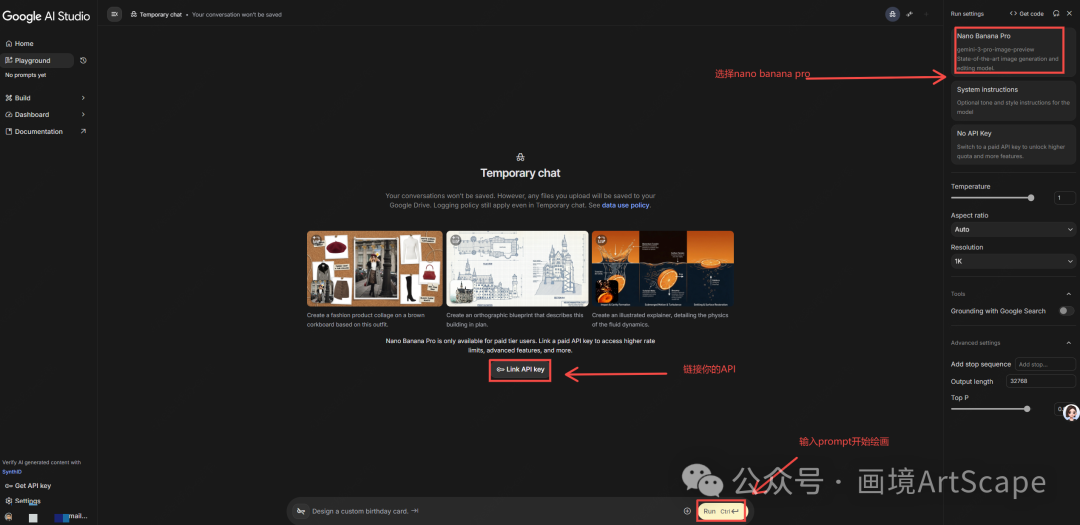
⚠️ 两个必须注意的坑:
- 没免费午餐了
Flash 版本有免费层级,但 Pro 版本必须绑定计费(Billing)。 - 价格预警
生成 1K/2K 图大概是 $0.134/张,4K 图是 $0.24/张。玩的时候悠着点,别把信用卡刷爆了。(文末有省钱小技巧!)
🧠Google AI Studio设置API
链接:https://aistudio.google.com/
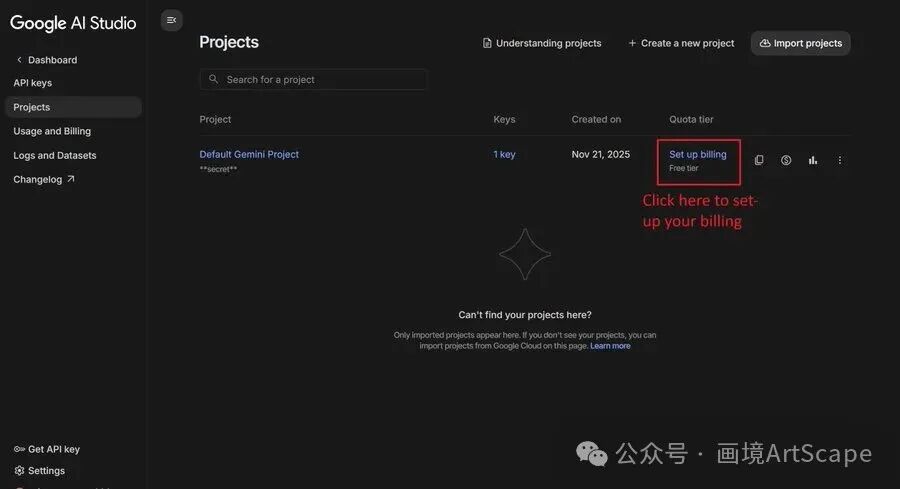
步骤 A:获取 API 密钥
首次登录 Google AI Studio 时,系统会自动创建一个 Google Cloud 项目及对应的 API 密钥。
-
打开 API 密钥管理界面 -
点击 “复制” 图标,即可复制你的 API 密钥
步骤 B:启用计费功能
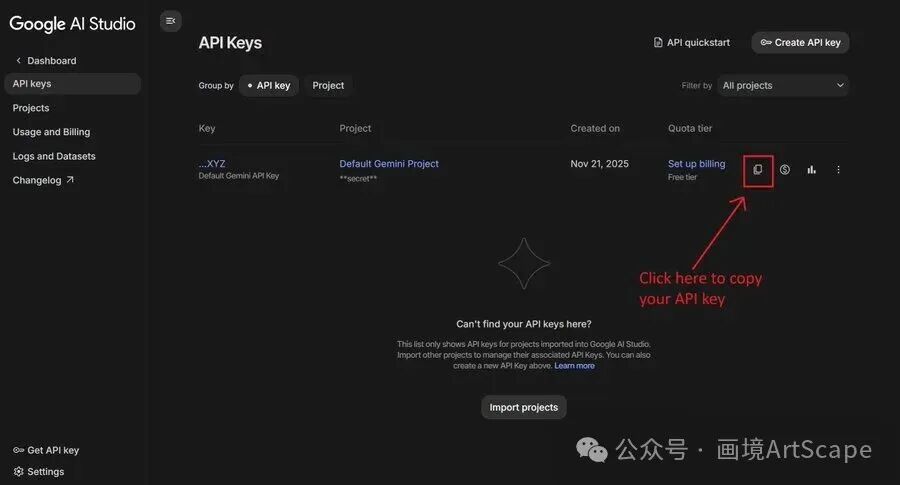
由于 Nano Banana Pro 不提供免费额度,你必须为你的 Google Cloud 项目启用计费功能。
-
在 API 密钥管理界面中,点击项目旁的「设置计费」按钮 -
按照屏幕上的指引完成操作即可 
Nano Banana Pro 的定价是多少?
Nano Banana Pro 的图像生成费用高于极速版(Flash 版本),尤其是 4K 图像。本文发布时的定价如下:
-
1K 或 2K 图像:单价 0.134 美元 -
4K 图像:单价 0.24 美元(注:以上价格另加输入提示词和文本输出的令牌费用)
请查阅官方文档中的定价页面获取最新详情。
💡 实用技巧:使用批量 API(Batch API)可节省 50% 的生成成本,不过你可能需要等待最长 24 小时才能获取生成的图片。
💻 环境安装
Python 党直接一把梭:
Bash
pip install -U google-genai\pip install Pillow # 处理图片用
JS 党看这里:
Bash
npm install @google/genai02. 基础起手式:Hello Banana
先来个最基础的生成代码,热热身。
首先初始化客户端,注意模型 ID 是 gemini-3-pro-image-preview。
Python
from google import genaifrom google.genai import types# Initialize the clientclient = genai.Client(api_key="YOUR_API_KEY")# Set the model IDPRO_MODEL_ID = "gemini-3-pro-image-preview"
prompt = "Create a photorealistic image of a siamese cat with a green left eye and a blue right one"aspect_ratio = "16:9" # "1:1","2:3","3:2","3:4","4:3","4:5","5:4","9:16","16:9" or "21:9"response = client.models.generate_content(model=PRO_MODEL_ID,contents=prompt,config=types.GenerateContentConfig(response_modalities=['Text', 'Image'], # Or just ['Image']image_config=types.ImageConfig(aspect_ratio=aspect_ratio,)))# Display the imagefor part in response.parts:if image:= part.as_image():image.save("cat.png")
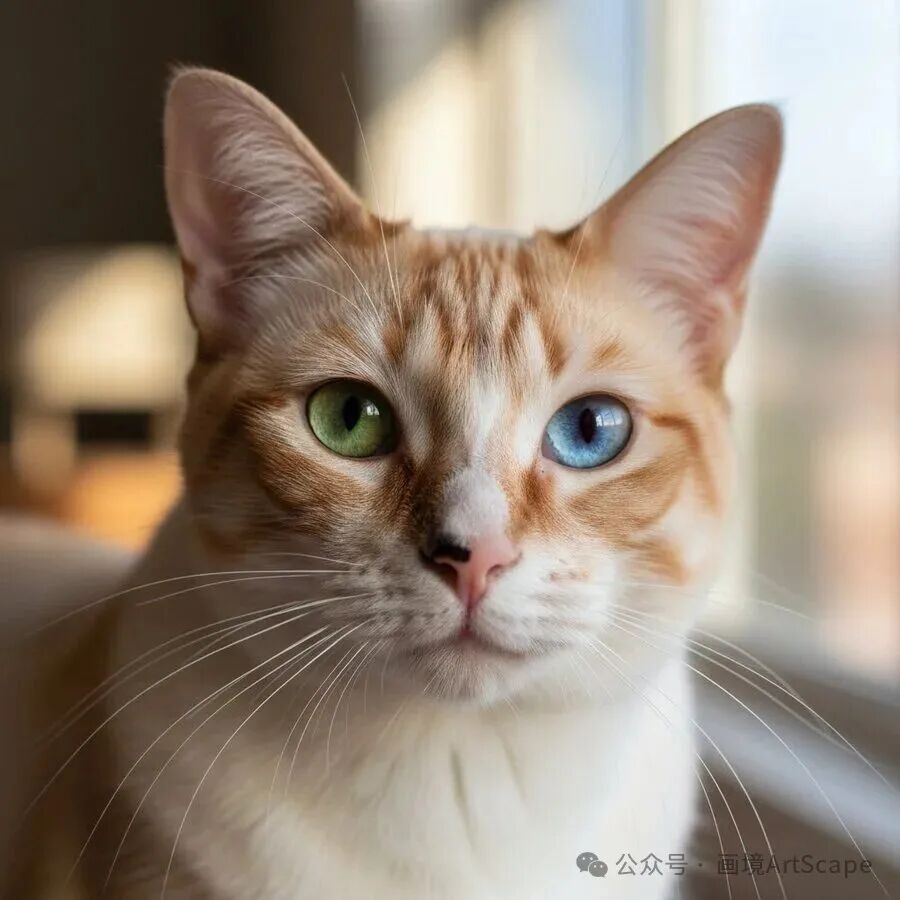
这只是基本操作,接下来才是重头戏。
03. 会思考的 AI:Thinking Process
这是我觉得最炸裂的功能。
以前的文生图模型,你说啥它画啥,不懂也不问。Nano Banana Pro 不一样,它在画画之前,会先推理(Thinking)。
它会分析你的 Prompt,构思构图,甚至补全你没说清楚的细节。要把这个打开,需要在 Config 里加上 thinking_config。
Python
prompt = "Create an unusual but realistic image that might go viral"aspect_ratio = "16:9"response = client.models.generate_content(model=PRO_MODEL_ID,contents=prompt,config=types.GenerateContentConfig(response_modalities=['Text', 'Image'],image_config=types.ImageConfig(aspect_ratio=aspect_ratio,),thinking_config=types.ThinkingConfig(include_thoughts=True # Enable thoughts)))# Display the image and thoughtsfor part in response.parts:if part.thought:print(f"Thought: {part.text}")elif image:= part.as_image():image.save("viral.png")运行之后,你会看到控制台打印出这种东西:
🧠 AI的想法: “我现在主要关注 ‘不寻常但现实’ 这个点。我想象了一个复古巴士在玻利维亚拉巴斯拥挤的场景,这很有视觉冲击力。我要加一只羊驼在车上…”
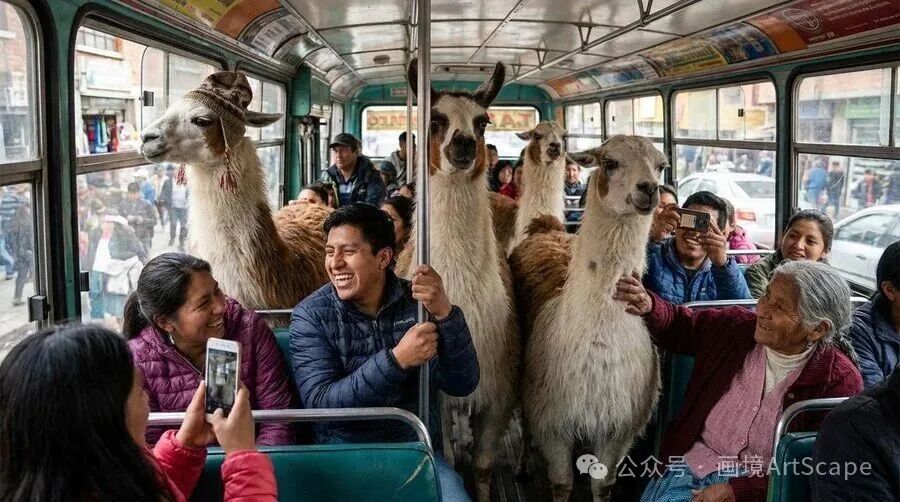
这就好比你请了个画师,他画之前先跟你沟通了一遍思路。这大大降低了废图率!
04. 实时联网:Search Grounding
Nano Banana Pro 不再是“断网”的画家了。通过 Google Search 工具,它能获取实时数据。
比如:“把未来5天的东京天气预报画成一张现代图表,并告诉我该穿什么。”
Python
prompt = "Visualize the current weather forecast for the next 5 days in Tokyo as a clean, modern weather chart. add a visual on what i should wear each day"response = client.models.generate_content(model=PRO_MODEL_ID,contents=prompt,config=types.GenerateContentConfig(response_modalities=['Text', 'Image'],image_config=types.ImageConfig(aspect_ratio="16:9",),tools=[{"google_search": {}}] # Enable Google Search))# Save the imagefor part in response.parts:if image:= part.as_image():image.save("weather.png")# Display sources (you must always do that)print(response.candidates[0].grounding_metadata.search_entry_point.rendered_content)
它会真的去搜现在的天气,然后把数据画进图里。这对于做即时资讯图表简直是神技。
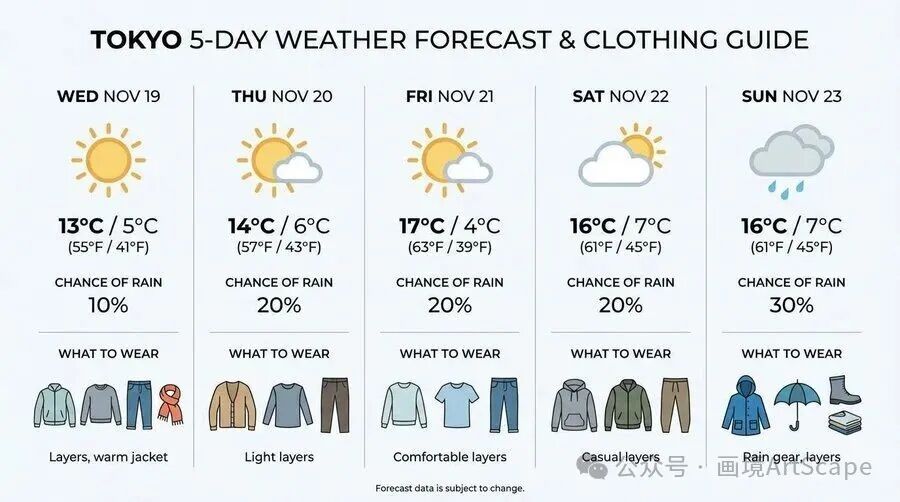
(Google Search 实时获取数据并生成的图表效果)
05. 极致画质:4K 原生直出
如果你是做打印或者高精设计的,Pro 版支持原生 4K。
Python
prompt = "A photo of an oak tree experiencing every season"resolution = "4K" # Options: "1K", "2K", "4K", be careful lower case do not work.response = client.models.generate_content(model=PRO_MODEL_ID,contents=prompt,config=types.GenerateContentConfig(response_modalities=['Text', 'Image'],image_config=types.ImageConfig(aspect_ratio="1:1",image_size=resolution)))

再次提醒: 4K 虽然爽,但成本翻倍。测试 Prompt 的时候建议用 1K,定稿了再开 4K。
06. 混合狂魔:支持 14 张参考图
Flash 版只能混 3 张图,Pro 版直接干到了 14 张!
你想搞个全家福,或者把一堆产品图混在一起做拼贴?直接丢进去就行。
Python
# Generate an infographic in Spanishmessage = "Make an infographic explaining Einstein's theory of General Relativity suitable for a 6th grader in Spanish"response = chat.send_message(message,config=types.GenerateContentConfig(image_config=types.ImageConfig(aspect_ratio="16:9")))# Save the imagefor part in response.parts:if image:= part.as_image():image.save("relativity.png")
不过官方建议,如果你特别在意人物面部的相似度,建议控制在 5 张以内效果最好。
07. 实测心得与省钱秘籍
测了一整天,总结几个Prompting 技巧:
-
🤖 把 AI 当人看:因为它有 Thinking 能力,你可以告诉它你的意图(Intent),而不仅仅是画面描述。比如“我想表达一种孤独感”,比单纯写“一个人站在空地上”效果更好。 -
📷 指定相机参数:直接写 “wide-angle shot” (广角) 或 “macro shot” (微距),它听得懂。 -
🌏 利用多语言能力:这货是 Polyglot(多语言通),你让它生成带中文、日文文字的海报,准确率惊人,不像以前的模型全是乱码。
💰一些实例
Complex Text Integration
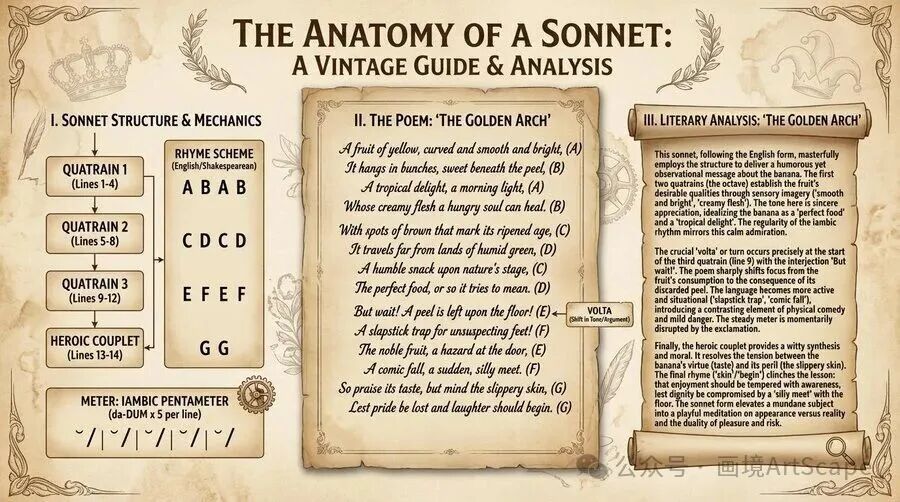
Prompt: “Show me an infographic about how sonnets work, using a sonnet about bananas written in it, along with a lengthy literary analysis of the poem. Good vintage aesthetics”
The model can generate coherent, lengthy text and integrate it perfectly into a complex layout.
High-Fidelity Mockups
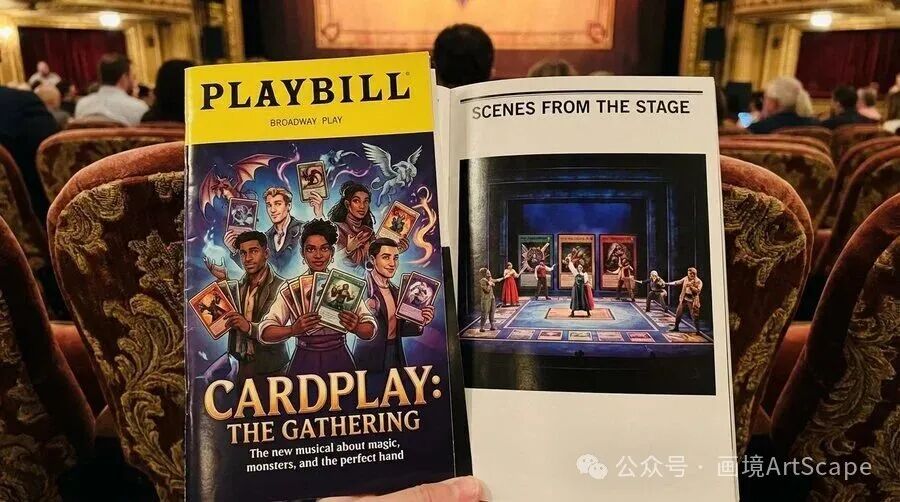
Prompt: “A photo of a program for the Broadway show about TCG players on a nice theater seat, it’s professional and well made, glossy, we can see the cover and a page showing a photo of the stage.”
Create photorealistic mockups of print materials with accurate lighting and texture.
总结
Nano Banana Pro (Gemini 3 Pro Image) 这次是真的把逻辑推理和图像生成结合起来了。
以前我们是像抽卡一样抽图,现在更像是和一个有脑子的设计师合作。
代码我都放在上面了,大家赶紧去 AI Studio 试玩一下,记得回来交作业!
来源:flux AI

发评论,每天都得现金奖励!超多礼品等你来拿
登录 后,在评论区留言并审核通过后,即可获得现金奖励,奖励规则可见: 查看奖励规则